PRAL FBR Extension
Table of Contents
Overview
This guide will walk you through integrating the PRAL FBR Extension with your Manager.io application. The extension enables seamless submission of invoices to Pakistan's Federal Board of Revenue (FBR) system directly from Manager.io.
Key Features
- Direct invoice submission to FBR from Manager.io
- Support for both Sandbox and Production environments
- Automatic custom field generation
- QR code generation for compliance
- Real-time validation and error handling
Before requesting your security token, you'll need the FBR Extension IP address for whitelist registration.
The IP address below must be registered in the IP Whitelist when requesting your Security Token from PRAL.
Steps to get your token:
- Visit the PRAL FBR Portal and register your business
- During token request, provide the IP address shown above for whitelist registration
-
Choose your desired environment:
- Sandbox - For testing and development
- Production - For live server operations
- Save the security token provided by PRAL securely
The extension can be installed directly from the Extension Directory without manual configuration:
- In Manager.io, open Settings → Extensions
- Find PRAL FBR Extension in the Extension Directory
- Click the extension to open the installation panel
- Your businesses will be listed automatically
- Click Install next to each business you want to enable
Clicking Install automatically registers the extension for the selected business, including the Sales Invoice View and Business Details placements. No manual configuration needed.
To remove the extension from a business, click Uninstall next to that business in the same panel. This removes all extension placements for that business.
Complete the integration setup within Manager.io through the following substeps:
- In Manager, open the Sales tab
- Create a new Invoice and save it
- Display the Invoice View
- Open the FBR - Extension tab below the Invoice View
- You will see the setup page as shown below:
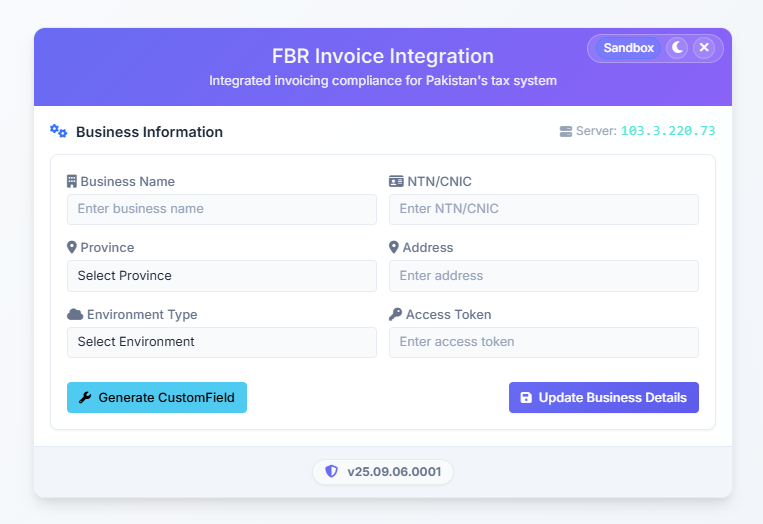
Click the [Generate Custom Fields] button:
- This button creates all required Custom Fields for the integration
- Custom fields will be automatically added to your Manager database
- Wait for the success confirmation message
Complete the "Business Setup Configuration" form with your information:
- Business Name - Your registered business name
- NTN/CNIC - Your tax identification number
- Province - Select your business province
- Address - Complete business address
- Environment - Choose Sandbox or Production (must match your token)
- Bearer Token - Enter the security token from PRAL
Click [Validate Token & Update Business Details] button:
- This tests your token against the FBR server
- Ensure the Environment selection matches your token type
- If validation succeeds, data will be saved to Business Details
- The extension is now ready to submit invoices to FBR
Once setup is complete, you can submit invoices to FBR directly from Manager using this extension.
Support & Resources
Troubleshooting
If you encounter issues during integration, check the following:
- ......
- ......